Black Ops 7 is the latest addition to the Call of Duty franchise, bringing even faster and more dynamic gunfights thanks to the new wall-jumping movement system. As the gameplay speeds up, your connection needs to keep up with it.
Playing with high ping, packet loss or an unstable connection will immediately put you at a massive disadvantage.
In this guide, we’ll show you how the Netduma R3 gaming router can optimise your connection to eliminate high ping, packet loss and instability in Black Ops 7. We’ve also included essential network tips to help you improve your connection even further.
Check Black Ops 7 Server Status
If you're suddenly experiencing lag, stuttering, or difficulty connecting, the first thing to check is the Black Ops 7 server status. During busy periods such as a new season or peak evening hours, servers can become overloaded or temporarily unstable, causing higher base ping, packet burst, or login issues.
Here are some useful links to check the current status of Black Ops 7's servers:
If servers are experiencing problems, there is unfortunately no direct fix—you simply need to wait for the developers to resolve the issue. However, confirming that the servers are the cause can save you time troubleshooting your own equipment unnecessarily.
Use a Wired Connection for Black Ops 7
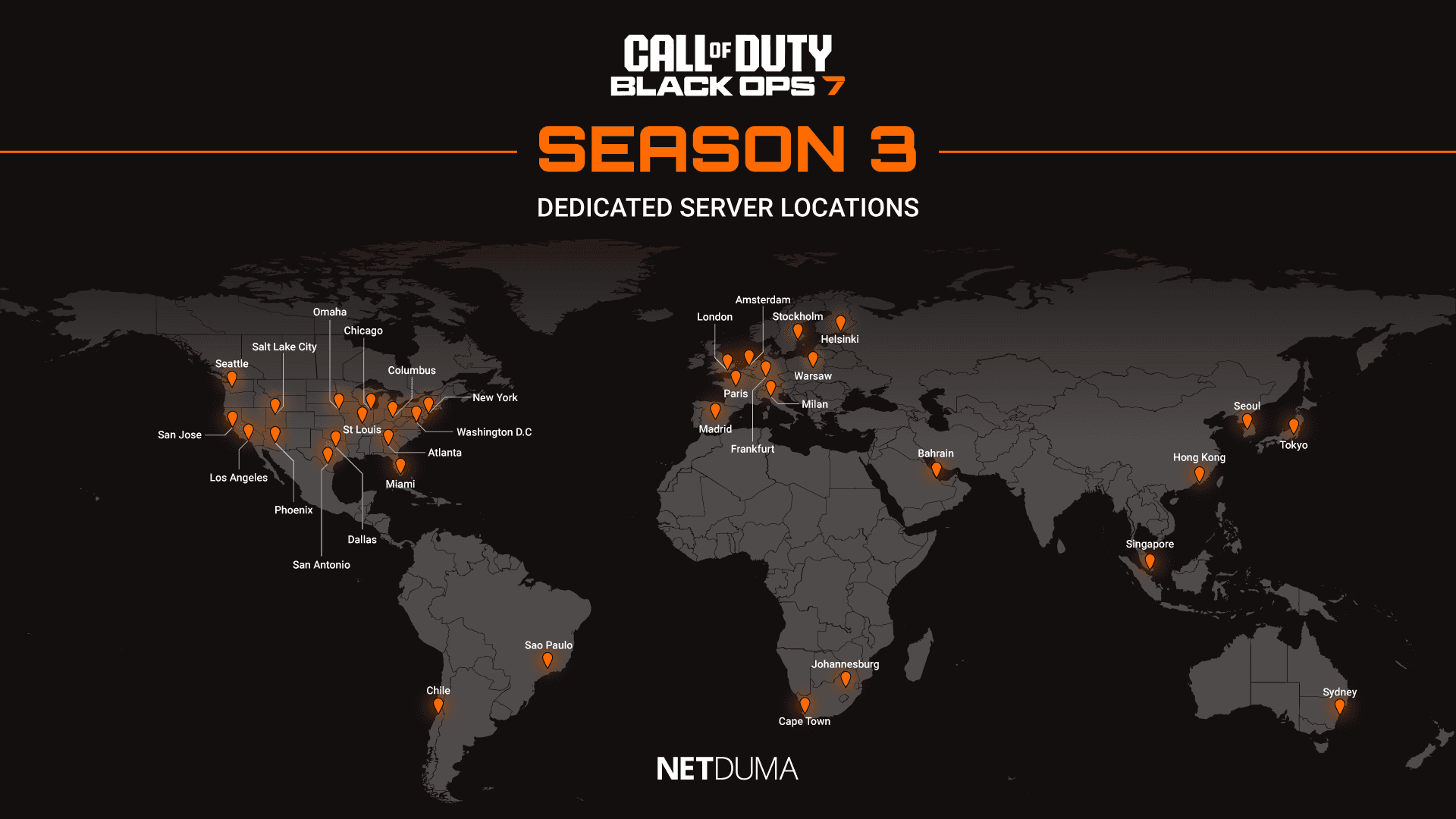
One of the simplest and fastest ways to improve your connection in Black Ops 7 is to switch from Wi-Fi to a wired Ethernet connection.
While Wi-Fi is convenient, especially if your console or PC is in another room, it introduces a lot of variables that can weaken your connection. Interference, signal drop-off over distance and inconsistent signal strength are all common issues that can cause packet loss and latency spikes during intense matches.
A wired Ethernet connection provides a far more stable and consistent link to your router, which is crucial for a fast-paced shooter like Black Ops 7.
If running a cable isn't practical, you may want to consider using powerline adapters. These allow you to achieve a stable wired-like connection across rooms without needing to run long cables through your home.
Black Ops 7 Connection Settings
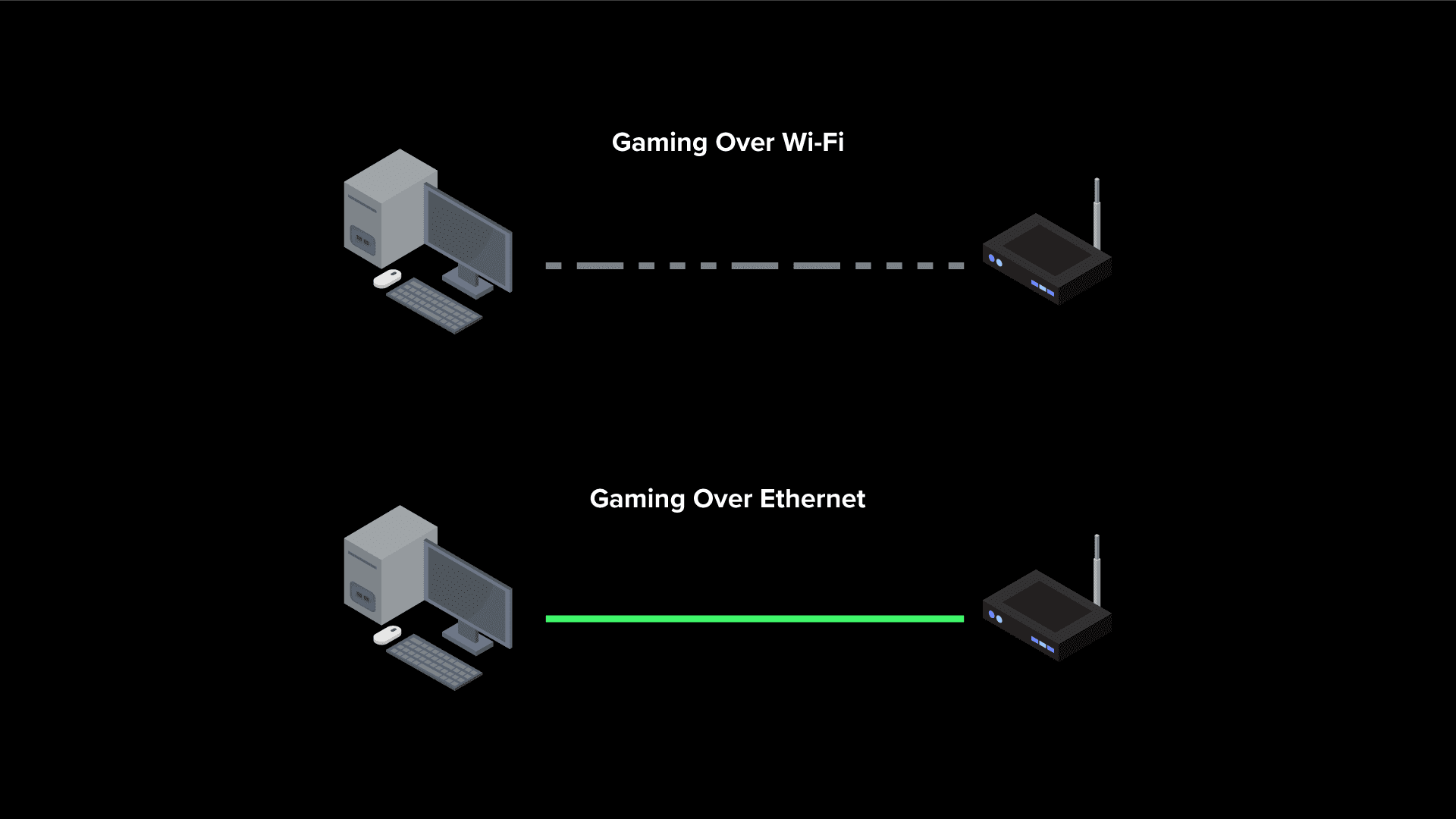
To understand what type of connection issues are affecting your gameplay, you should enable Telemetry in the Settings menu. Setting this to Essentials provides the most important information without cluttering your screen.
Once enabled, you’ll see real-time ping and packet loss indicators, giving you immediate feedback on whether you’re experiencing high ping, jitter or packet burst.
Another setting worth adjusting is On-Demand Texture Streaming. Since the ability to disable this feature was removed, some players have reported it causing packet burst during gameplay. Setting it to Minimum may help reduce this issue, and adjusting the Allocated Texture Cache Size to Medium or Large through the Show More menu can further stabilise your connection quality.
Optimise Your Connection in Black Ops 7
If you want the best possible connection in Black Ops 7, the Netduma R3 gaming router is built specifically for gamers who want superior stability and responsiveness in their gameplay.
Its features are designed to eliminate high ping, packet loss, jitter and network congestion so that every match feels fast and consistent, even when your home network is under heavy load.
Below, we break down exactly how the R3 can fix the most common connection issues affecting Black Ops 7 players.
Fix High Ping in Black Ops 7 with Geo-Filter
High ping puts you at an immediate disadvantage, especially with Black Ops 7’s faster movement system and rapid gunfights. High ping is almost always caused by being placed on a distant or overloaded game server.
Even though Black Ops 7 has moved away from strict SBMM, the game may still connect you to a suboptimal server, resulting in sluggish, delayed gameplay.
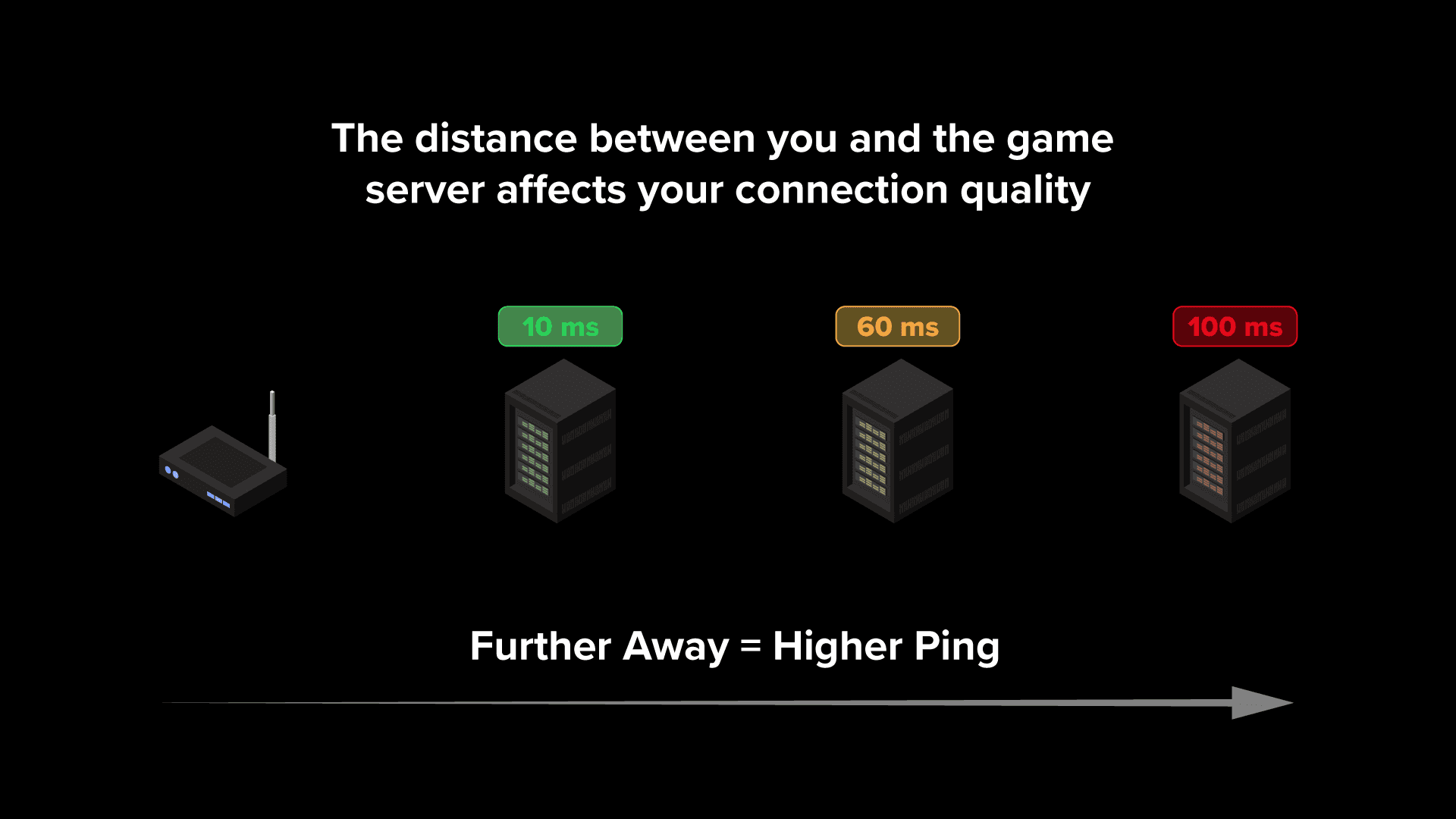
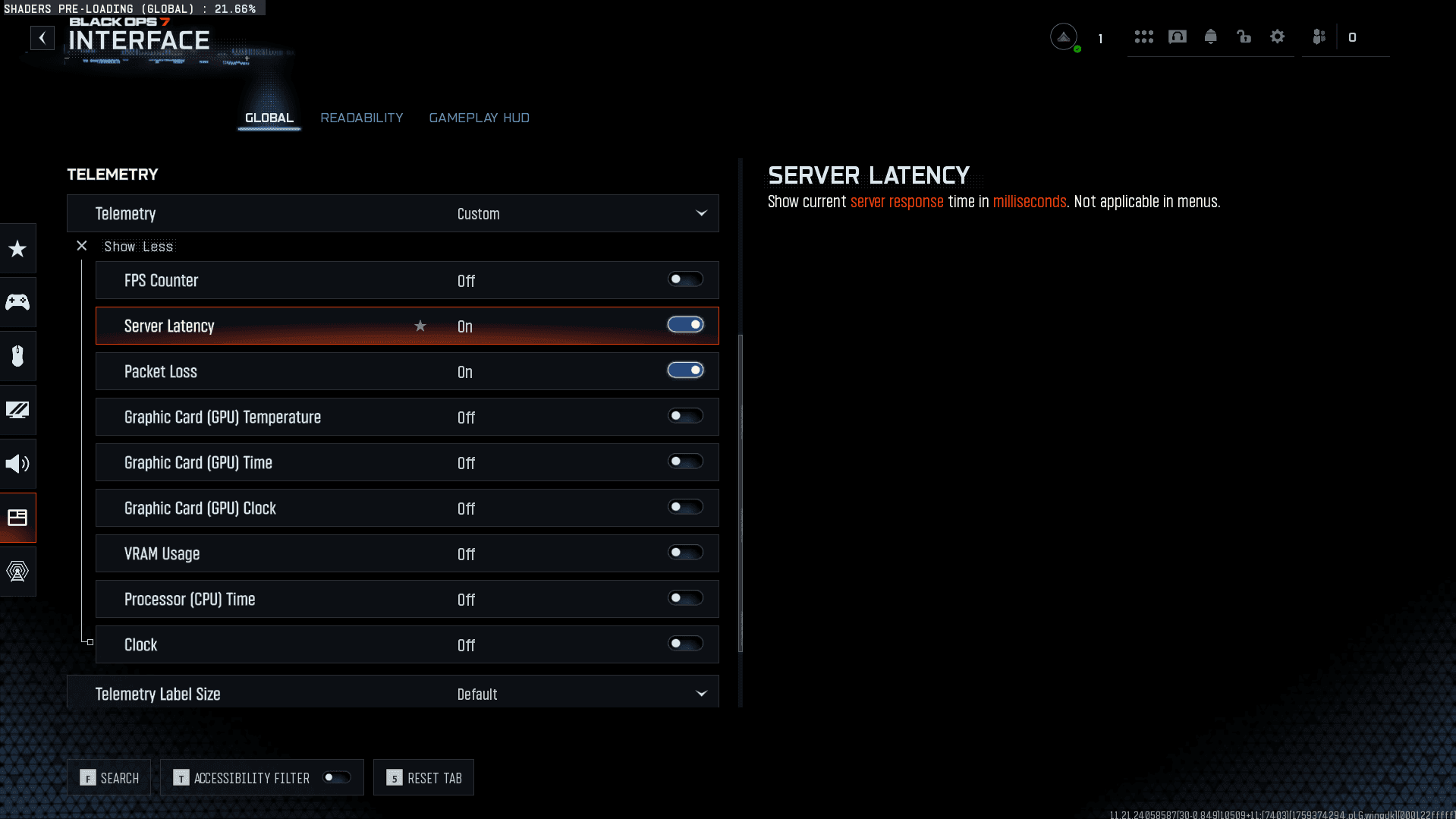
Geo-Filter is the only tool that gives you full control over the servers you connect to. With the R3’s Geo-Filter enabled, you can force your game to only use the lowest-ping servers while blocking high-ping or unstable ones. This guarantees a consistently responsive experience match after match.
Simply add your device, select Black Ops 7 as your game, and adjust your filter radius to cover the best server locations. You can also use the R3’s Ping Heatmap feature to identify where the highest-performing servers are located.
If you want to learn more about the set up process and what the Geo-Filter can do, check out our blog on it here. Or if you want to see the feature in action, check out our ultimate Geo-Filter guide video below.
Fix Ping Spikes in Black Ops 7 with Steady Ping
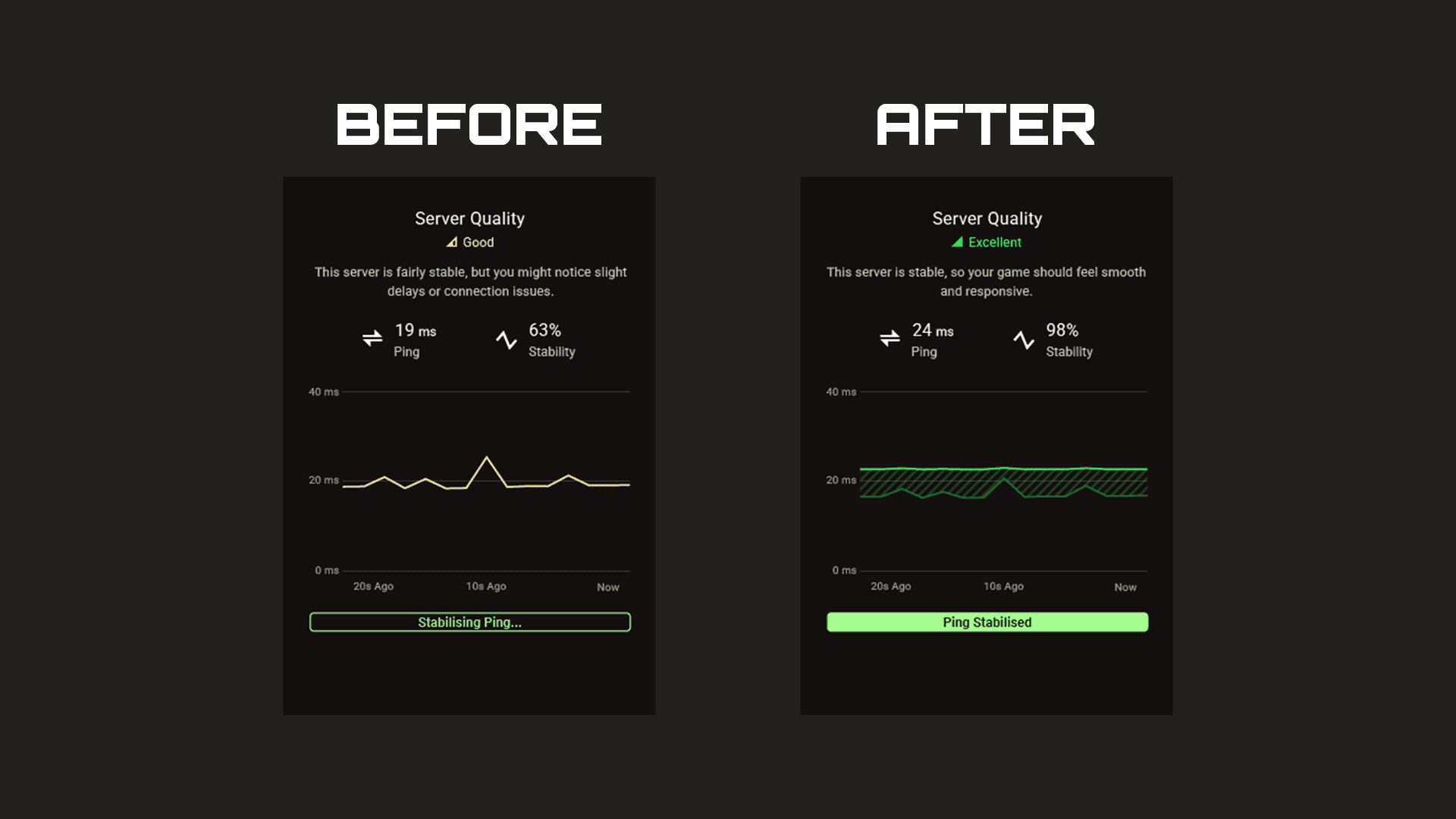
Steady Ping is another powerful feature that will increase how responsive your inputs and gameplay feel. It does this by eliminating jitter - the micro changes in ping, from your connection. This allows you game to better sync to the game server, which should make your gameplay feel extremely smooth.
Once Steady Ping is enabled, you can see your ping automatically becoming stabilised in the ping graph section. If you want to experiement with settings to find the sweet spot for your network, you can switch Steady Ping to Expert Mode.
Fix Packet Loss in Black Ops 7 with SmartBOOST
The last connection issue to fix in Black Ops 7 is packet loss and packet burst, which is often caused by network congestion. If you're gaming on a busy network filled with bandwidth intensive activities like video streaming and file downloads - it can cause your game to lag and stutter.
SmartBOOST is the ultimate network optimisation tool that eliminates congestion and bufferbloat so your gaming remains smooth and stable, no matter how busy your network is.
It ensures whatever applications you mark as high priority always get the amount of bandwidth they need for optimal performance. This means if gaming is the top priority on your network, intensive activities won't be able to cause you any issues.
If you want to see SmartBOOST optimise a busy home network for gaming, check out our live demo video below.