
Marathon is Bungie's new survival extraction FPS game that blends bold design with fast paced loot focused gameplay. Whether you're fighting against the UESC forces, or other players - you'll need a fast and stable connection to succeed.
In this blog we'll show you how to fix all connection issues in Marathon. Whether you're suffering from high ping, packet loss or an unstable connection, we have a fix for you in this blog.
Check the Marathon Server Status
The first thing to check when experiencing high ping or connection issues in Marathon is the games server status. If the servers are experiencing problems or become overloaded at peak times, your connection quality may suffer or your may experience issue logging into the game.
The only official way to check Marathon's server status is through the official Bungie server status X (Twitter) Account, which you can find here.
Unfortunately, there is no direct solution for server issues as it's up to the game developers to fix them. But knowing they are the cause of your connection issues will save you time troubleshooting your own network.
Use a Wired Connection
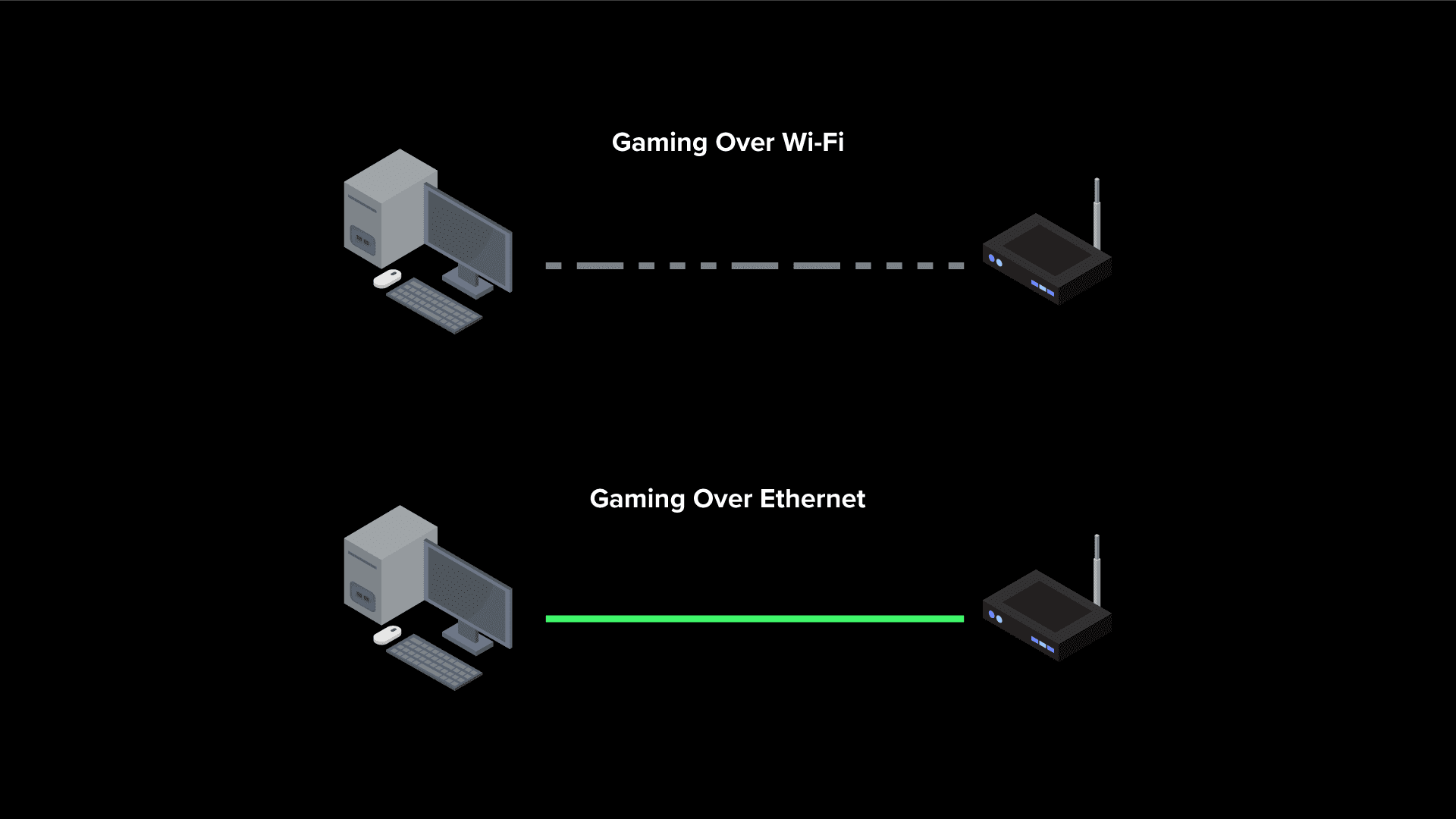
Using a wired connection instead of Wi-Fi will drastically improve your connection quality in Marathon. Whilst Wi-Fi is convenient for getting your devices online, it has some shortcomings for online gaming.
The main issues come from signal strength and interference, which can lead to packet loss, rubber banding and disconnections. In a high stakes game like Marathon where packet loss or disconnections can cause you to lose value loot and time, you need to make sure your connection is as stable as possible.
Switching to a wired ethernet connection is one of the quickest ways to get a better connection in Marathon. Ethernet offers a faster, more stable and lower latency connection - which is ideal for fast paced looting and gunfights. It also does not suffer from signal strength or interference, like Wi-Fi.
The only drawback to ethernet is whether its practical for you to run a cable between your router and gaming device. If this is an issue for your setup, you may want to look into Powerline Adapters. These let you carry an ethernet connection between devices using your home existing electrical wiring.
Fix Your Connection in Marathon with the Netduma R3
The Netduma R3 gaming router is the ultimate tool to combat connection issues in Marathon. Whether you're suffering from high ping, an unstable connection or packet loss - the R3 has a fix.
In the following sections we'll break down the gaming features of the R3 that will eliminate each connection issue so you can get back to scavenging around Tau Ceti IV.
Fix High Ping in Marathon with the Geo-Filter
The Geo-Filter feature allows you to control what game servers you connect to, instead of leaving it all up to a matchmaking algorithm.
The game server you connect to is the biggest determining factor of your ping in Marathon. The further away the server is, the higher your ping, this mean you'll always want to connect to your nearest servers.
The Geo-Filter allows you to do this by creating a customisable filter around your location which forces connection to servers inside the radius, whilst blocking connection to servers outside of it.
This feature also gives you insight into your connection quality, which you can't normally see due to Marathon having no connection metric settings. The side bar of the Geo-Filter will show you the server you're connected to, your in-game ping and how stable your connection is.
If you want to learn more about the Geo-Filter and its more advanced settings, check out our Ultimate Geo-Filter guide below.
Fix Ping Spikes in Marathon with Steady Ping
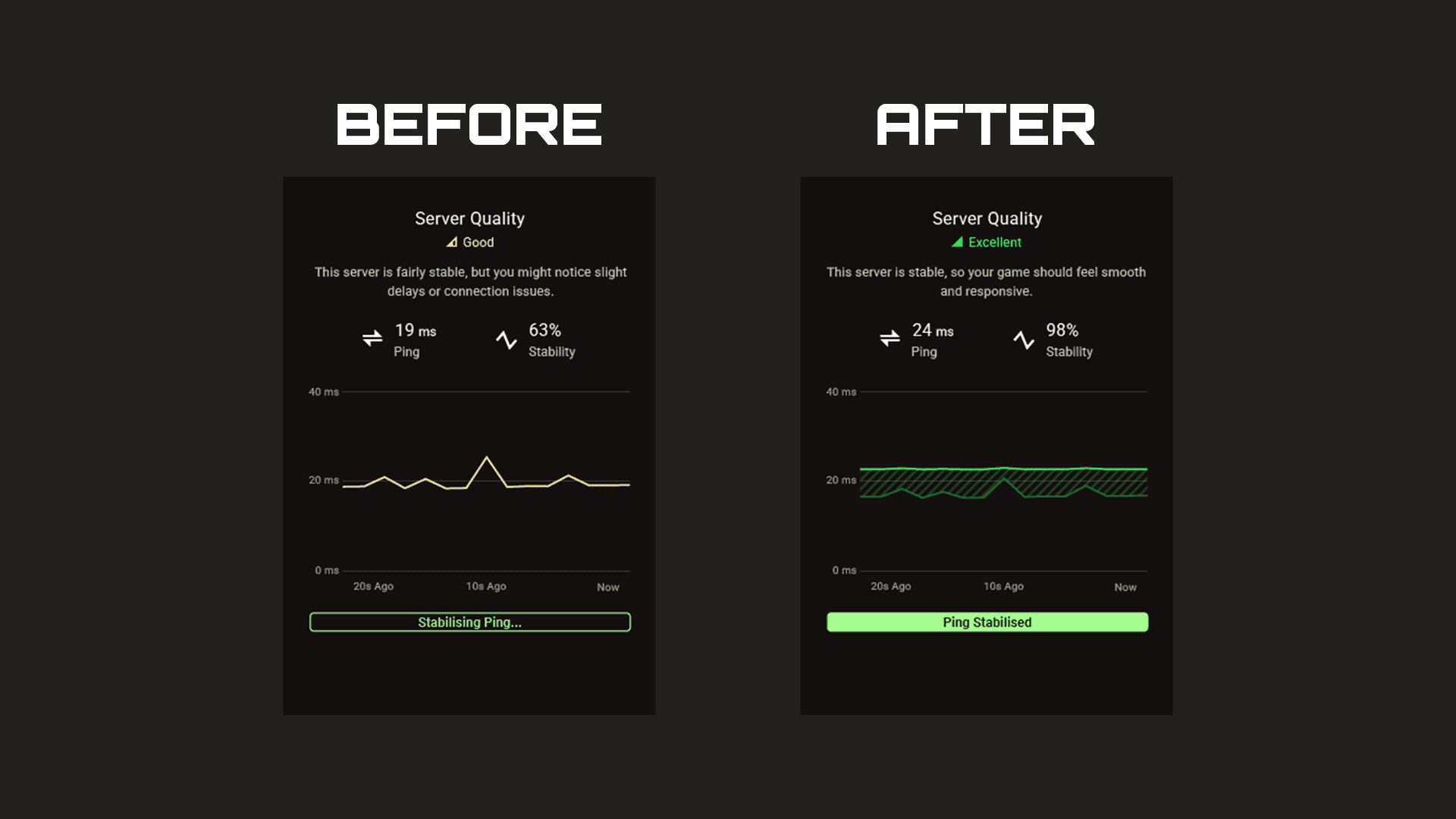
There is nothing worse in an intense gunfight than your ping spiking, especially when your loot is on the line. Steady Ping fixes this issue by stabilising your connection and eliminating jitter. This helps the game better sync to the game server you're connected to, which results in extremely responsive inputs and gameplay.
Once Steady Ping is enabled, it will automatically start to stabilise your connection as you load into a game. If you want more control, or just want to tinker with settings, there is an Expert Mode available which let's you set your ideal ping to stabilise to.
Fix Packet Loss in Marathon with SmartBOOST
Packet loss is a major problem in fast paced games like Marathon, as dropped packets can completely ruin your chances of an exfil. This is an extremely problem common on busy networks, with other devices and applications fighting over your networks bandwidth.
The R3's SmartBOOST feature allows you to prioritise gaming and eliminates bufferbloat, so all applications on your network will run smoother. By ensuring big downloads or streaming movies doesn't interrupt your gaming, you'll always be playing on a fast and stable connection.
If you want to see SmartBOOST optimise a busy home network, check our our live demo video below.